
How to Improve Website Speed (Without Losing Your Mind)
If your website pages load slowly, you’re not just dealing with an annoying “spinning wheel” problem — you’re dealing with a revenue, ranking, and reputation problem.
Visitors bounce when a page feels slow (especially mobile users on mobile devices).
Search engines reward fast sites because speed is part of great web performance (and ties into Core Web Vitals).
A slow site makes even the best design feel… kind of broken.
IMPORTANT NOTE: This guide is built to be saved. It’s packed with real numbers, specific practices, and tools—and it works whether you run a WordPress website, a Squarespace site, a Shopify online store, or a Wix site.
How to Improve Website Speed: Start With the Right Goal

Before we change anything, let’s define “fast.”
A strong, realistic target for most websites:
Largest Contentful Paint (LCP): under 2.5 seconds
Interaction to Next Paint (INP): under 200 ms
Cumulative Layout Shift (CLS): under 0.1
These are the three metrics that matter most in Core Web Vitals for real users.
Quick “save-this” baseline:
Aim for under 2 seconds load time on mobile for key pages (home, services/product, contact).
If you can’t hit that right away, set a first milestone: reduce site loading time by 20–30%.
Site Speed: Test First (So You’re Not Guessing)

Use these tools to get a clear audit:
Google PageSpeed Insights (best for Core Web Vitals + opportunities)
Browser DevTools (Network tab shows requests, file sizes, what’s blocked, and what loads last)
Your analytics (like Google Analytics) to compare “lab data” vs real users
Tip: Test one page at a time:
Homepage
One high-traffic blog post
One product page (Shopify)
One services page (lead gen)
Log your “before” numbers in a simple note: date, URL, mobile score, LCP, INP, CLS.
Website Speed: Why Pages Load Slowly (The Most Common Factors)
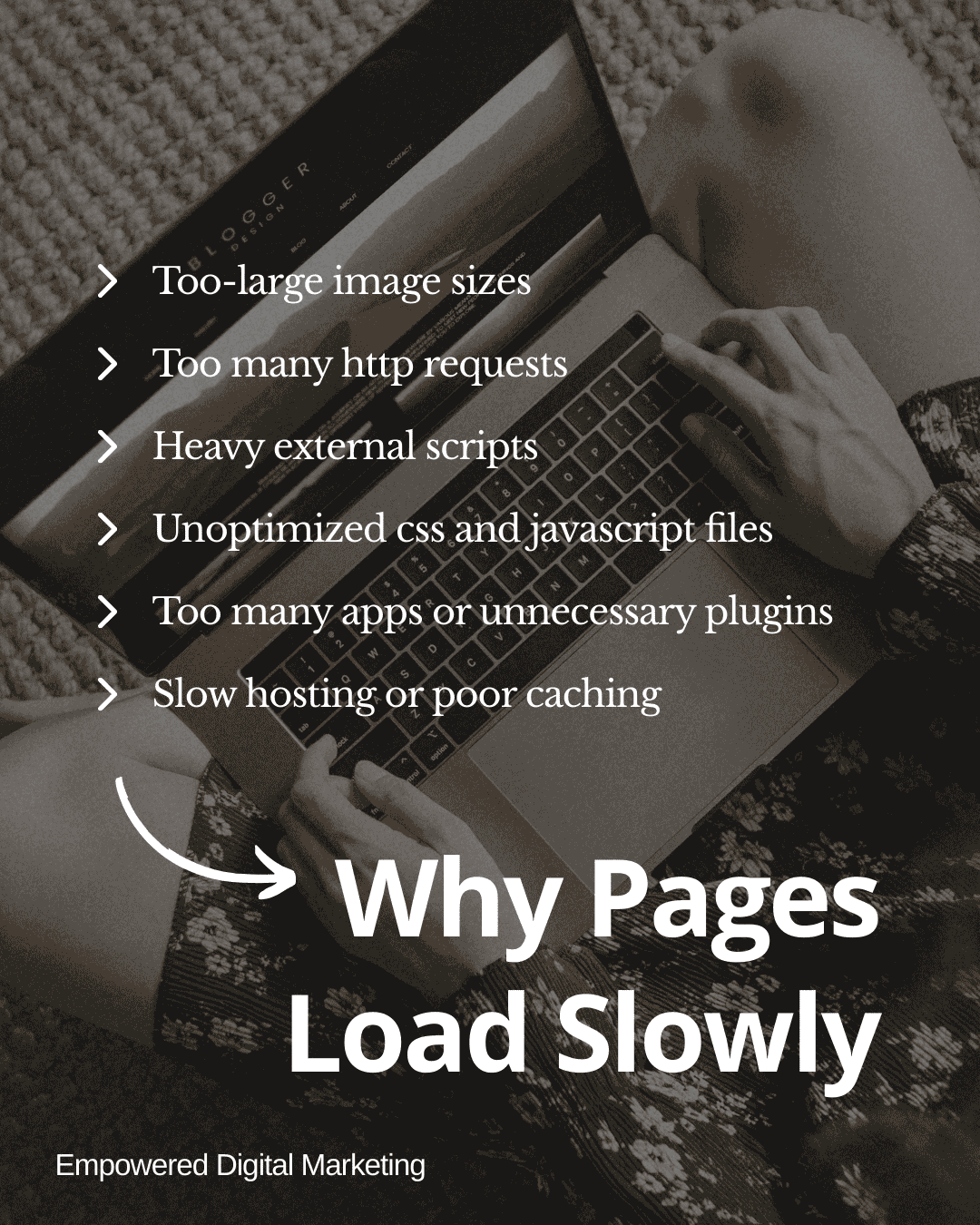
Most speed issues come from the same handful of culprits:
Too-large image sizes
Too many http requests (aka multiple requests for scripts, fonts, tracking)
Heavy external scripts (chat widgets, booking tools, heatmaps)
Unoptimized css and javascript files
Too many apps or unnecessary plugins
Slow hosting, slow server first byte (TTFB), or poor caching (browser cache not leveraged)
Good news: these are fixable.
Load Time: The Image Sizes You Should Actually Use
“Compress images” is true, but vague. Let’s get specific.
Recommended image file size targets (practical + safe)
Hero banner / large header images: 150–300 KB each
Standard content images: 80–200 KB
Thumbnails / grids / logos: 10–60 KB
Absolute “try not to exceed” for any single image: 500 KB (unless it’s a photography portfolio and you truly need it)
Recommended dimensions (so you don’t upload a billboard)
Full-width hero: ~1920 px wide (often enough for modern screens)
Content column images: 1200 px wide max
Thumbnails: 400–800 px wide depending on your layout
Best format for web performance
Use WebP format whenever possible for photos and many graphics.
PNG only when you truly need transparency or crisp UI shapes (and even then, WebP can often handle it).
Why this matters: Images are usually the largest “static files” on a page, and big images chew up bandwidth and increase load time on weak connections.

Action checklist (do this today):
Pick your top 10 traffic pages.
Replace any image over 500 KB.
Convert to WebP.
Re-upload.
CSS and JavaScript Files: Reduce What the Browser Has to Do
Your site can “load” quickly but still feel slow if the browser is busy processing css files, scripts, and layout changes.
What to do (in plain language)
Remove unused code (old custom features, abandoned scripts)
Defer non-critical scripts so they don’t block rendering
Avoid loading 4 different font families and 9 weights “just in case”
Font best practices that move the needle
Use 1–2 font families max
Limit to 2–3 weights total (example: 400, 600, 700)
If your platform allows, use variable fonts (one file, many weights)
Why: Fonts are requests. Requests slow things down. Too many requests = slower page.
HTTP Requests: Fewer Requests = Faster Pages
Every image, script, font, and stylesheet is another request + another round of http responses. Your browser is basically a project manager yelling, “Where’s my file?” all day.
Targets to aim for
While every site is different, a solid goal for many small business sites:
Under 70 total requests for a typical page
Under 2 MB total page weight (mobile target)
If your page is 6–10 MB with 180 requests, speed improvements will be dramatic once you trim.

Quick wins that reduce multiple requests:
Remove unused apps/plugins
Consolidate tracking tools (you don’t need 3 analytics scripts)
Avoid embedding 5 different third-party widgets on one page
External Scripts: The Silent Speed Killers
External scripts often load from other services (chat, scheduling, popups, social feeds). Even if your server is fast, these can slow everything down or delay interaction.
What to do
Inventory scripts in your site settings (and in DevTools → Network).
Ask: “Does this tool increase conversions enough to justify slowing the page?”
Keep only the essentials.
Practical rules
If a script is not critical for the first view, load it after the page becomes visible (defer/async when available).
If a tool is used on one page (like a booking widget), don’t load it site-wide.
Unnecessary Plugins: Especially Important for a WordPress Website
On WordPress, plugins can be a blessing… or a speed tax.
A realistic WordPress plugin policy
Keep total plugins under 25 when possible.
Remove anything inactive, duplicated, or “we tried it once.”
Avoid stacking plugins that do the same job (SEO plugins, caching plugins, image plugins).
Example: If you have 2 redirect plugins + 2 caching plugins + 3 page builders, your site is doing a lot of extra work.
What to do instead
Choose one solid plugin per function (one caching, one SEO, one forms).
Use performance-focused hosting.
Don’t install “just in case” plugins.
First Byte: Fix Server Response Time (TTFB)
First byte (Time to First Byte) is how long it takes your server to respond to the browser’s first request. If this is slow, everything starts late.
Healthy targets
Great: under 200 ms
Good: 200–500 ms
Needs attention: 500 ms+
Painfully slow: 1,000 ms+
How to improve first byte (TTFB)
Upgrade hosting (cheap hosting often = slow shared resources)
Use caching (server-side caching when available)
Reduce heavy database work (WordPress especially)
Use a content delivery network for static files
Content Delivery Network: Your Speed “Teleportation Device”
A content delivery network (CDN) stores copies of your static files (images, CSS, JS) across many global locations. When someone visits, they load files from a closer server—less distance, better speed.

When a CDN helps most
You serve customers in multiple regions/countries
Your site uses lots of images
Your site gets traffic spikes
You run an online store (Shopify especially)
Many platforms include some CDN functionality, but it’s still worth confirming what’s enabled and what’s not.
Website Owners: Platform-Specific Speed Tips (Squarespace, Shopify, Wix, WordPress)
Let’s make this practical based on the builders you mentioned.

Squarespace website speed tips
Replace oversized images (Squarespace is image-heavy by nature).
Limit third-party embeds and external scripts (social feeds, chat, scheduling).
Be careful with heavy “design hacks” and too much custom code.
Use fewer fonts + weights.
Squarespace reality check: You have less control over deep performance settings, so content optimization (images + scripts) is your biggest win.

Shopify online store speed tips
Audit apps: remove anything not actively increasing revenue.
Compress and replace product images (WebP when possible; keep product images often under 200–300 KB).
Avoid auto-playing video in the above-the-fold area.
Keep sliders/carousels minimal (they add scripts + image weight).
Shopify reality check: Apps add requests. Requests add load time.

Wix website speed tips
Keep animations tasteful (too many can impact web performance).
Use fewer third-party widgets.
Optimize images before upload (Wix helps, but starting with the right file matters).

WordPress website speed tips
Use a performance-friendly theme (avoid “everything and the kitchen sink” templates).
Add caching + optimization (one good plugin, configured well).
Optimize database and limit plugin bloat.
Convert images to WebP and lazy-load below-the-fold media.
WordPress reality check: You can build the fastest sites on WordPress—but only if you avoid plugin chaos.
Website’s Performance: A “Do This in Order” Speed Fix Plan
If you want a simple plan you can follow without spiraling:
Run Google PageSpeed Insights on 3–5 key pages and save the results.
Fix images first (largest and easiest wins).
Convert to WebP
Keep heroes 150–300 KB; content images 80–200 KB
Remove unnecessary plugins/apps/scripts
Delete what you don’t use
Limit external tools loaded site-wide
Reduce fonts + weights
Enable caching + CDN where your platform allows
Re-test and compare performance metrics (LCP, INP, CLS, total page weight, requests)
This is how you improve speed without breaking your site.
Web Performance: Quick FAQ (Because Everyone Asks)
Does site speed help me rank higher?
Yes—speed supports better user experience, and Core Web Vitals are part of what helps search engines evaluate website’s performance. Faster pages also improve engagement (more time on page, better click through, fewer bounces).
What’s the fastest “free tool” to see what’s slow?
Google PageSpeed Insights is the most common starting point. Pair it with your browser’s DevTools for a deeper look at requests and scripts.
Will improving speed increase conversions?
Often, yes—especially for mobile users and online stores. A site that loads faster reduces friction in the sales funnel.
Save-This Checklist: How to Improve Website Speed This Week
Replace any image over 500 KB
Convert top-page images to WebP format
Keep hero images 150–300 KB
Remove unnecessary plugins / apps
Reduce external scripts
Limit fonts to 1–2 families and 2–3 weights
Aim for under 70 http requests per page (when possible)
Improve first byte by upgrading hosting/caching if TTFB is 500ms+
Re-test in Google PageSpeed Insights and log improvements (date + URL)